


TURBO HD DVR 7200 Series – Product Description
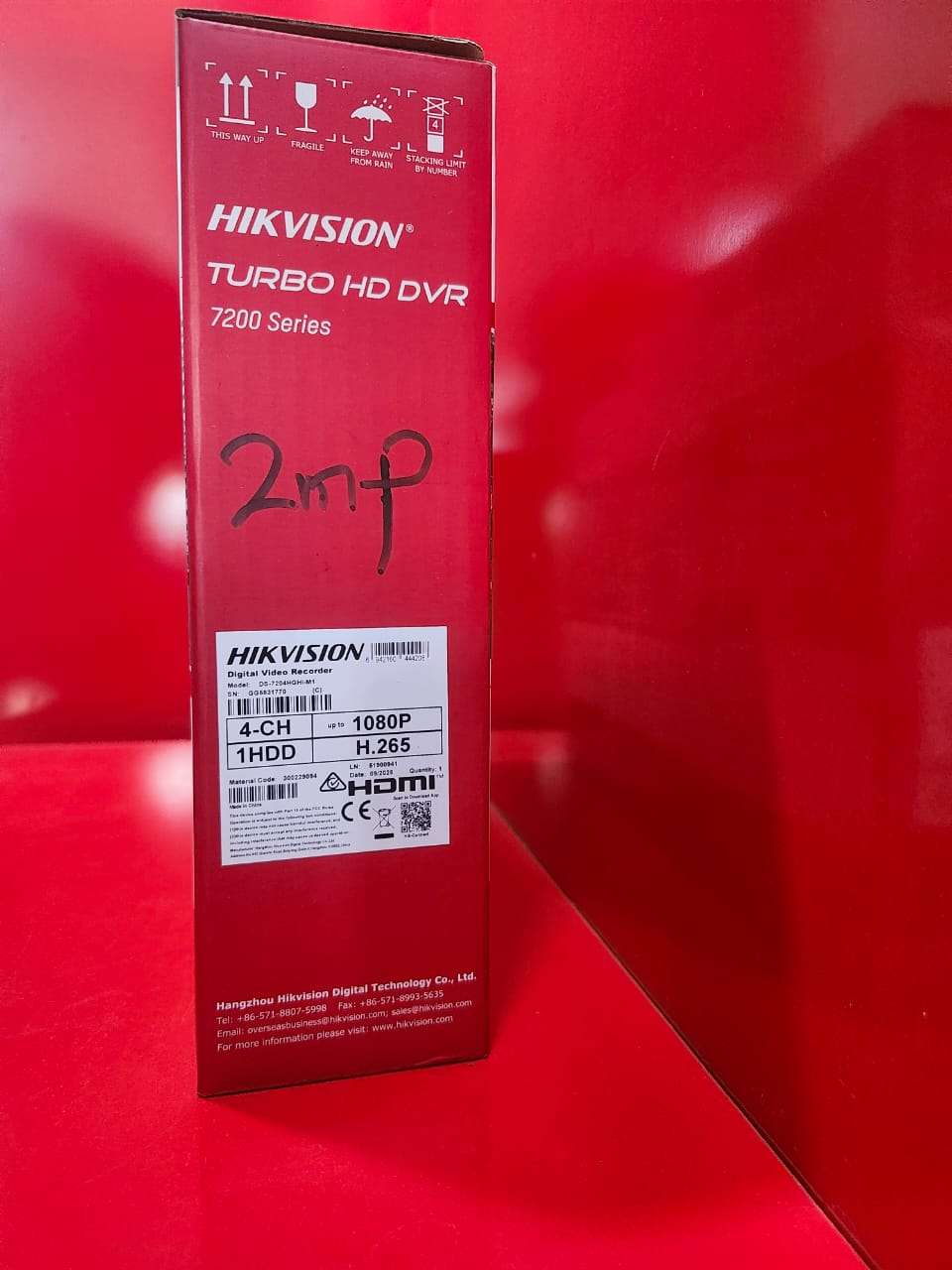
The TURBO HD DVR 7200 Series is a powerful and reliable digital video recorder designed for professional video surveillance and security monitoring applications. It supports multiple HD camera inputs, delivering high-quality video recording, playback, and remote monitoring for homes, offices, retail stores, warehouses, schools, and commercial facilities.
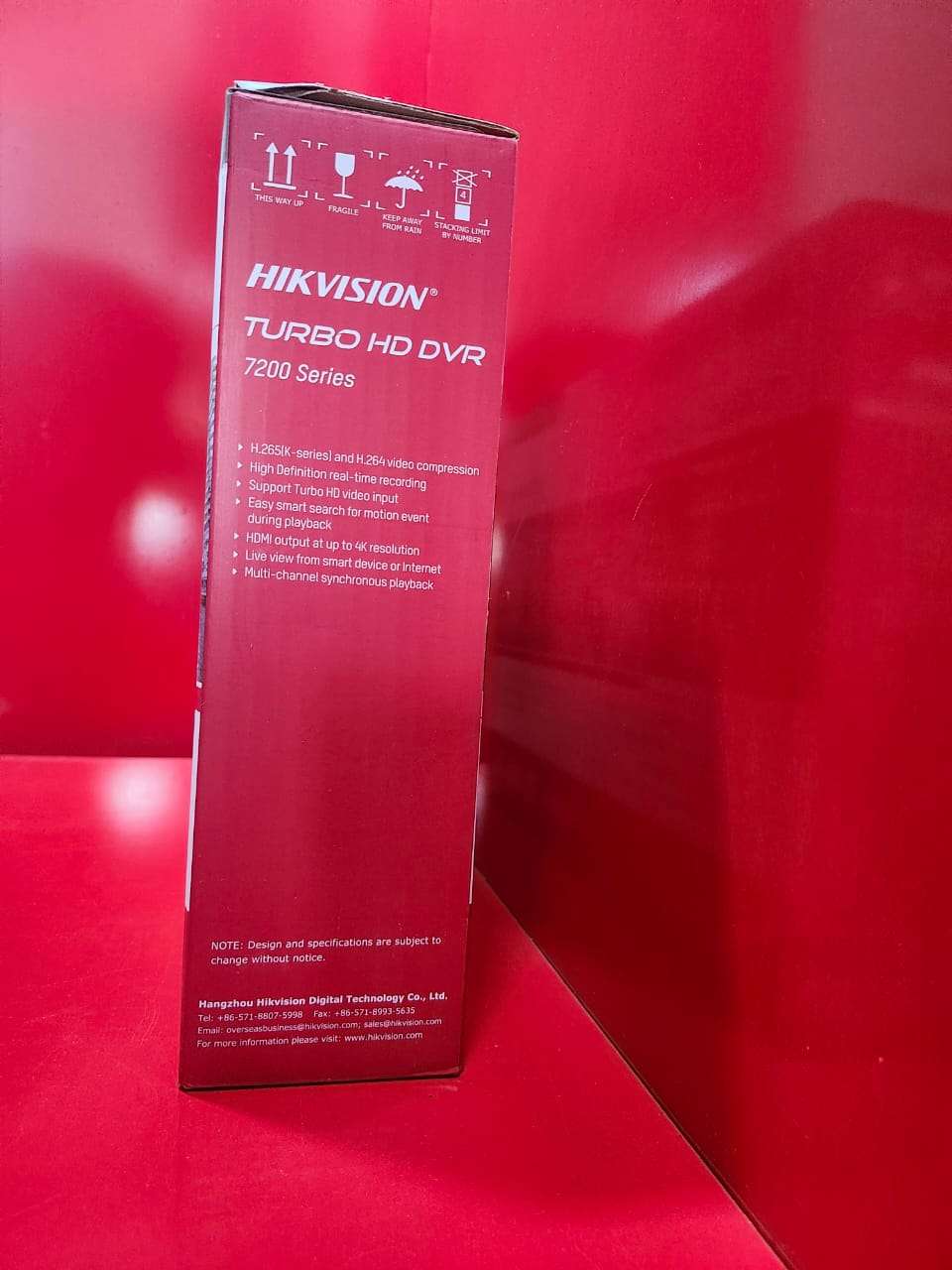
Featuring advanced video compression technology, the DVR optimizes storage usage while maintaining excellent image quality. The system supports real-time recording and playback, allowing users to monitor live footage and review recorded events with ease. With network connectivity, users can remotely access their surveillance system through a smartphone, tablet, or computer from anywhere at any time.
The TURBO HD DVR 7200 Series is compatible with TURBO HD, analog, and IP cameras, providing flexible installation options for new and existing security systems. Motion detection, event notifications, and intelligent search functions help improve security management and incident investigation.
Key Features:
Supports multiple TURBO HD camera channels
High-definition video recording and playback
Advanced H.265+/H.265 video compression technology
Remote viewing via mobile app and PC software
Motion detection and instant alert notifications
HDMI and VGA video output support
Audio recording capability (model dependent)
Supports hard disk drive (HDD) storage for continuous recording
Smart search and playback functions
Easy integration with compatible security cameras
Applications:
Residential security systems
Office and business surveillance
Retail stores and shopping centers
Warehouses and industrial facilities
Educational institutions
Hotels and hospitality environments
It is an ideal recording solution for users seeking dependable video management, remote access, and high-quality surveillance performance for both small and large security installations.

How to Use the TURBO HD DVR 7200 Series
Step 1: Install the Hard Drive
Open the DVR cover.
Install a compatible SATA hard drive (HDD) for video storage.
Connect the HDD power and data cables securely.
Close the DVR cover.
Step 2: Connect the Cameras
Connect TURBO HD cameras to the DVR using coaxial cables.
Connect the camera power adapters and ensure all cameras are powered on.
Step 3: Connect a Monitor
Connect a monitor or TV to the DVR using an HDMI or VGA cable.
Turn on the monitor and DVR.
Step 4: Power On the DVR
Connect the DVR power adapter.
Switch on the DVR and wait for the system to boot.
Step 5: Initial Setup
Create an administrator password.
Set the date, time, and time zone.
Configure network settings if internet access is required.
Step 6: Configure Recording
Go to the recording settings menu.
Select continuous, scheduled, or motion-detection recording.
Save the settings.
Step 7: Enable Remote Viewing
Connect the DVR to a router using an Ethernet cable.
Install the manufacturer’s mobile app on your smartphone.
Scan the DVR QR code or enter the device serial number to add the DVR.
Log in to view live video remotely.
Step 8: Playback Recorded Video
Open the Playback menu.
Select the camera channel, date, and time.
Review, pause, fast-forward, or export recordings as needed.
Step 9: Backup Footage
Insert a USB flash drive into the DVR.
Select the video files you want to save.
Export the recordings to the USB device.
Step 10: Maintain the DVR
Regularly check available storage space.
Keep the DVR in a cool, ventilated area.
Update firmware when available.
Ensure camera and network connections remain secure.
Package Contents
TURBO HD DVR 7200 Series
Power Adapter
Mouse
User Manual
Mounting Accessories (if applicable)
It is recommended to configure strong passwords and regularly back up important recordings to ensure maximum security and data protection.

CUSTOMERS’ CHATS